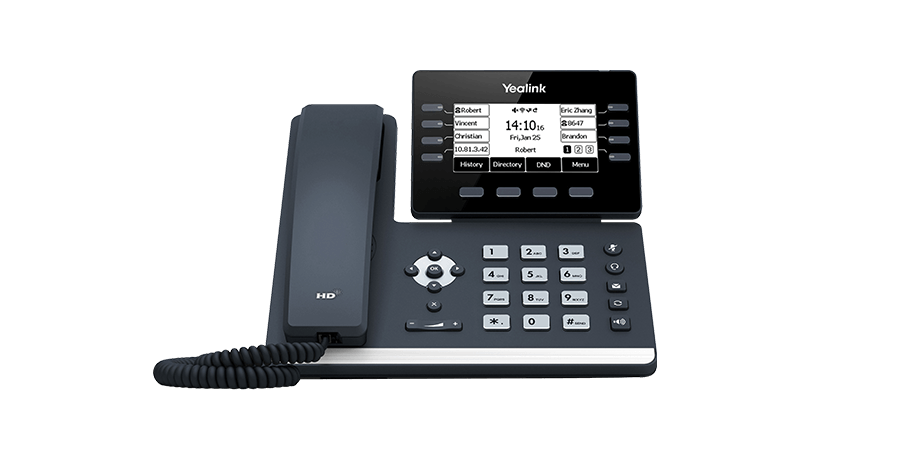
Phone Guide Yealink T53W
Yealink T53W User Guide
Complete reference for DVGVoIP customers using the Yealink T53W IP desk phone — calling, voicemail, transfers, forwarding, and more.
Last updated: March 2026
Screen 3.7" Color TFT
Line Keys 8 programmable
Wi-Fi Built-in 802.11ac
Bluetooth Built-in BT 4.2
Network Gigabit Ethernet
Placing a Call
| Method | Steps |
|---|
| Using Handset | Pick up the handset → Dial number → Press Send |
| Using Speakerphone | Press Speaker → Dial number → Press Send |
| Using Headset | Press Headset → Dial number → Press Send |
| Redial | Press Redial once to see call history, or twice to call immediately |
Tip: You can switch between handset, speakerphone, and headset during a call without interrupting it.
Answering a Call
| Method | Action |
|---|
| Using Handset | Pick up the handset |
| Using Speakerphone | Press Speaker |
| Using Headset | Press Headset |
| Reject | Press the Reject soft key to send to voicemail |
| Silence Ring | Press Silence — phone stops ringing but call continues |
Hold & Resume
| Action | Steps |
|---|
| Place on Hold | Press Hold soft key. Caller hears hold music. |
| Resume (one call) | Press Resume |
| Resume (multiple) | Press ↑ or ↓ to select, then Resume |
Transferring a Call
| Transfer Type | Steps |
|---|
Blind Transfer
Transfers without announcing | Press Transfer → Dial extension → Press Transfer again |
Semi-Attended
Wait for ring-back | Press Transfer → Dial → Press # → Press Transfer at ring-back |
Attended
Announce before transferring | Press Transfer → Dial → Press # → Announce → Press Transfer |
| To Voicemail | Press Transfer → Dial *4 + extension → Press Transfer |
Mute, End & Redial
| Action | Steps |
|---|
| Mute | Press Mute during a call. LED turns red. Press again to un-mute. |
| End Call | Hang up handset, or press End Call soft key |
| Redial | Press Redial once for call history, twice to dial last number |
Call Forwarding
Navigate to: Menu → Features → Call Forward, then choose a type:
| Forward Type | Behaviour |
|---|
| Always Forward | All calls forwarded unconditionally. Enter destination → Save. |
| Busy Forward | Forwards when on a call. Enter destination → Save. |
| No Answer Forward | Forwards after set ring time. Enter destination + ring time → Save. |
Conference Calling
| Action | Steps |
|---|
| Start a Conference | During a call, press Conference → Dial second party → Press Send → Press Conference again when they answer |
| End Conference | Press End Call |
| Split Conference | Press Split to separate into two individual calls |
Speed Dial & Line Keys
| Action | Steps |
|---|
| Configure Speed Dial | Menu → Features → DSS Keys → Select key
Set Type: Speed Dial → Enter number → Save |
| Configure BLF | Menu → Features → DSS Keys → Select key
Set Type: BLF → Enter extension → Save. LED: green = available, red = on call, flashing = ringing. |
| Use Speed Dial | Press the configured key to dial instantly |
Note: The T53W has 8 programmable line keys. An expansion module (EXP50) can be added for more keys.
Voicemail
| Action | Steps |
|---|
| New Voicemail Indicator | Power LED flashes red. Message waiting icon on screen. |
| Listen to Messages | Press Connect soft key or dial 999 / 9999 |
| From Any Extension | Dial 999 or 9999 → # → Enter your extension |
| From Outside | Call Digital Receptionist → Dial 999/9999 → Enter extension → # |
Voicemail Menu Keys
| Key | Action | Key | Action |
|---|
| * | Play messages | 5 | Record self-ID |
| 1 | Change profile status | 7 | Change PIN |
| 3 | Dial external number | 8 | Change greeting |
| 4 | Delete all READ | # | End call |
Extension Status Codes
| Status | Dial Code |
|---|
| Available | *30 |
| Away | *31 |
| Out of Office | *32 |
| DND On | *61 |
| DND Off | *60 |
| Log In to Queue | *62 |
| Log Out of Queue | *63 |