Phone Guide Yealink MP56 Microsoft Teams
Yealink MP56 Teams Phone Guide
Complete reference for DVGVoIP customers using the Yealink MP56 Microsoft Teams-certified desk phone — making calls, joining meetings, voicemail, contacts, and Teams-specific features.
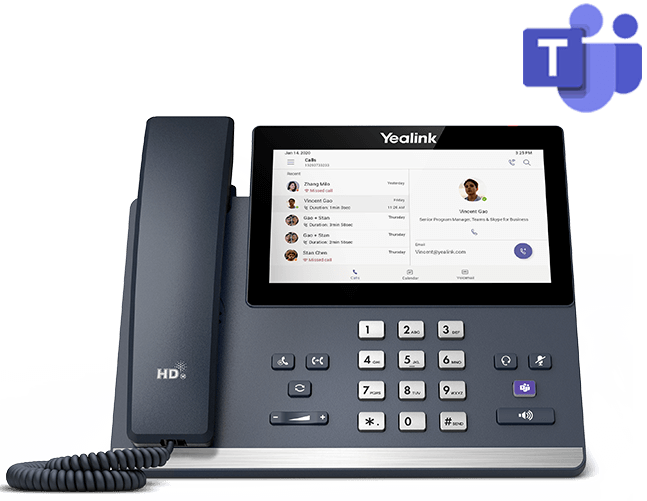
Teams-Only Device: The MP56 runs the Microsoft Teams phone app natively. All calling, contacts, and voicemail are managed through your Teams account — not the standard Yealink menu system used on T-series phones.
Signing In to Teams
| Method | Steps |
|---|---|
| Sign in on the phone |
1. Tap Sign In on the welcome screen 2. Enter your Microsoft 365 email address 3. Enter your password → Tap Sign In 4. Complete MFA if prompted |
| Sign in via web (recommended) |
1. Tap Sign in from another device on the phone 2. A code appears on screen — go to microsoft.com/devicelogin on any browser 3. Enter the code → Sign in with your Microsoft 365 credentials 4. The phone signs in automatically |
| Sign Out | Tap your profile picture → Settings → Sign Out |
Note: Your phone number and extension are assigned via the Microsoft Teams Admin Centre — contact DVGVoIP support if your extension is not appearing after sign-in.
Placing a Call
| Method | Steps |
|---|---|
| Dial a Number | Tap the Dial Pad icon → Enter the number → Tap the green call button or pick up the handset |
| Call a Teams Contact | Tap Calls → Contacts → Find the contact → Tap the call icon |
| Search for Contact | Tap the search bar → Type a name → Select the contact → Tap Call |
| Using the Teams Button | Press the dedicated Microsoft Teams button to go to the Teams home screen |
| Redial | Tap Calls → History → Tap a recent call entry to redial |
| Using Speakerphone | Tap the speaker icon during a call, or press the physical Speaker button |
Answering a Call
| Method | Action |
|---|---|
| Using Handset | Pick up the handset — call answers automatically |
| Touchscreen | Tap the green Accept button on the incoming call screen |
| Speakerphone | Tap Accept → then tap the speaker icon, or press the Speaker button |
| Headset | Press the answer button on your headset, or tap Accept with headset connected |
| Decline | Tap the red Decline button — redirects to voicemail |
| Reply with Message | Tap Reply → choose a pre-set text reply (Teams feature) |
Hold & Resume
| Action | Steps |
|---|---|
| Hold | Tap the Hold button on the call screen. Caller hears Teams hold music. |
| Resume | Tap Resume on the held call card |
| Manage Multiple Calls | Active and held calls appear as separate cards — tap a card to switch between them |
Transferring a Call
| Transfer Type | Steps |
|---|---|
| Blind Transfer Transfers immediately |
1. During a call, tap More (…) → Transfer 2. Search for a contact or type a number 3. Tap Transfer Now — call transfers immediately |
| Consultative Transfer Consult before transferring |
1. During a call, tap More (…) → Transfer 2. Search for a contact → Tap Consult then transfer 3. Speak to the recipient → Tap Transfer to complete |
| Transfer to Voicemail | Tap More (…) → Transfer → Voicemail → Search the contact → Tap Transfer |
Mute, End & Audio Controls
| Action | Steps |
|---|---|
| Mute | Tap the Mute button on the call screen, or press the physical Mute button. The mute LED lights red. |
| End Call | Tap the red hang-up button, or replace the handset |
| Volume | Press the physical volume up/down buttons on the phone body during a call |
| Switch Audio Device | Tap the audio device icon during a call to toggle between handset, speaker, and headset |
Teams Meetings
| Action | Steps |
|---|---|
| Join a Scheduled Meeting | Tap the Calendar tab on the home screen → Find the meeting → Tap Join |
| Join via Meeting ID | Tap Dial Pad → Join a meeting → Enter the meeting ID and passcode |
| Raise Hand | Tap More (…) → Raise Hand during a meeting |
| View Participants | Tap the People icon during a meeting |
| Leave Meeting | Tap the red hang-up button → Leave (or End Meeting for All if you are the organiser) |
Note: Video and screen sharing from Teams meetings are visible on the MP56 touchscreen but you cannot share content from the phone itself — use a PC for screen sharing.
Merge & Conference Calls
| Action | Steps |
|---|---|
| Add Someone to a Call |
During a call, tap More (…) → Add a call Search for a contact or enter a number → Tap Add |
| Merge Calls | With two active calls, tap More (…) → Merge to combine into a conference |
| Remove a Participant | Tap the People icon → Long-press a participant → Remove from call |
Voicemail
The MP56 uses Teams voicemail (not 3CX voicemail). Messages are delivered to your Teams app and email inbox.
| Action | Steps |
|---|---|
| New Voicemail Indicator | A voicemail badge appears on the Calls tab and the Teams button LED flashes |
| Listen to Voicemail | Tap Calls → Voicemail → Tap a message to play |
| Call Back | Tap a voicemail entry → Tap the Call back button |
| Delete Voicemail | Tap and hold a voicemail entry → Tap Delete |
| Change Voicemail Greeting | Open Teams app on your computer → Settings → Calls → Configure voicemail |
Note: Voicemail transcripts are also delivered to your Microsoft 365 email inbox when voicemail transcription is enabled by your administrator.
Presence & Status
Your Teams presence status is shared across all devices signed in with your Teams account.
| Status | How to Set |
|---|---|
| Available | Tap your profile picture → Tap current status → Select Available |
| Busy | Tap profile picture → Select Busy |
| Do Not Disturb | Tap profile picture → Select Do not disturb — incoming calls go directly to voicemail |
| Away / Be Right Back | Tap profile picture → Select Away or Be right back |
| Appear Offline | Tap profile picture → Select Appear offline |
Note: Teams automatically sets your status to In a call or In a meeting based on activity. Your status syncs across the phone, desktop app, and mobile app.
Device Settings
| Setting | How to Access |
|---|---|
| Volume & Ringtone | Tap profile picture → Settings → Device Settings → Ringtones & sounds |
| Display Brightness | Tap profile picture → Settings → Device Settings → Display |
| Bluetooth Headset | Tap profile picture → Settings → Device Settings → Bluetooth → Pair your device |
| Language & Region | Tap profile picture → Settings → Device Settings → Language |
| Check Firmware Version | Tap profile picture → Settings → About |